
There are three ways to add album credits to your profile. However, in order to be able to edit, you must be logged-in into your profile, and follow
- Navigate to "My Profile" Page
- Click on "Edit" button
Once in edit mode, there are three ways in which album credits can be added.
[1] Create a new album manually
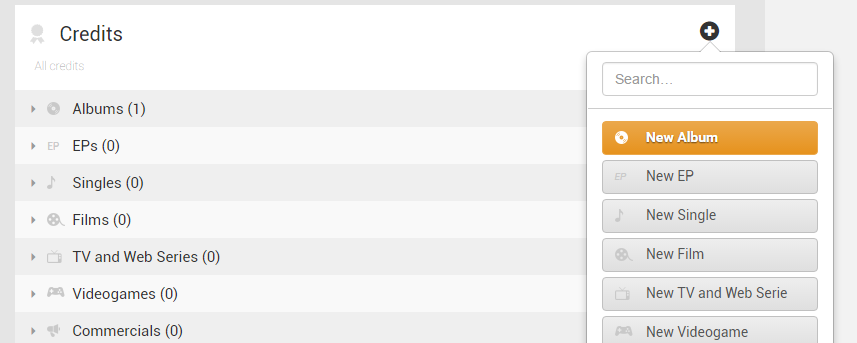
Step 1. Click on the (+) button in Credits section.
Step 2. Select first option, New Album.
Step 3. Provide album details in New Album form
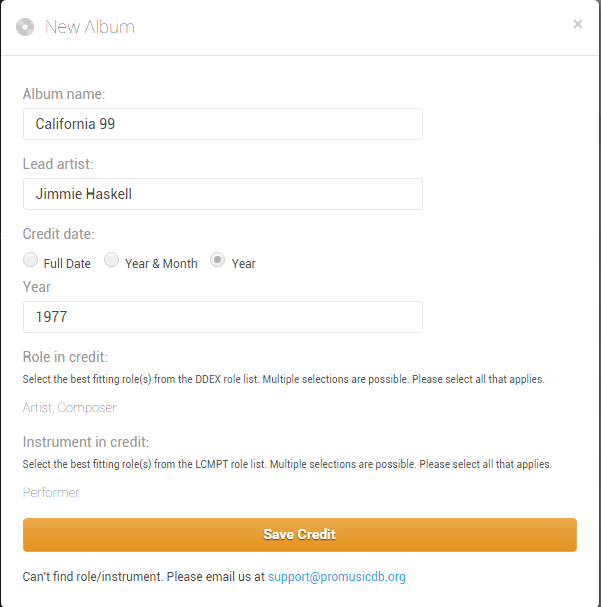
Step 4: Click Save Credit.
[2] Add by searching album titles
Step 1. Click on the (+) button in Credits section.
Step 2. Start typing album title in search box
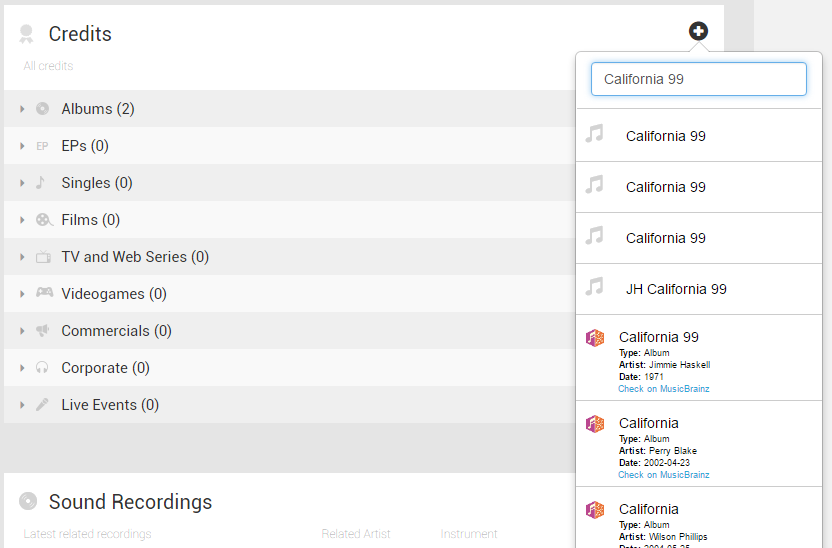
Step 3. Select the title from the search result
- Search result will list the titles available on ProMusicDB on top
- Remaining with the MusicBrainz logo are retrieved from MusicBrainz
Step 4. Select credits in "Define Role" pop-up

Step 5. Click Save
[3] Add multiple albums via MusicBrainz Look-up feature
Step 1. Click on the (+) button in Credits section.
Step 2. Select "Search on MusicBrainz" button
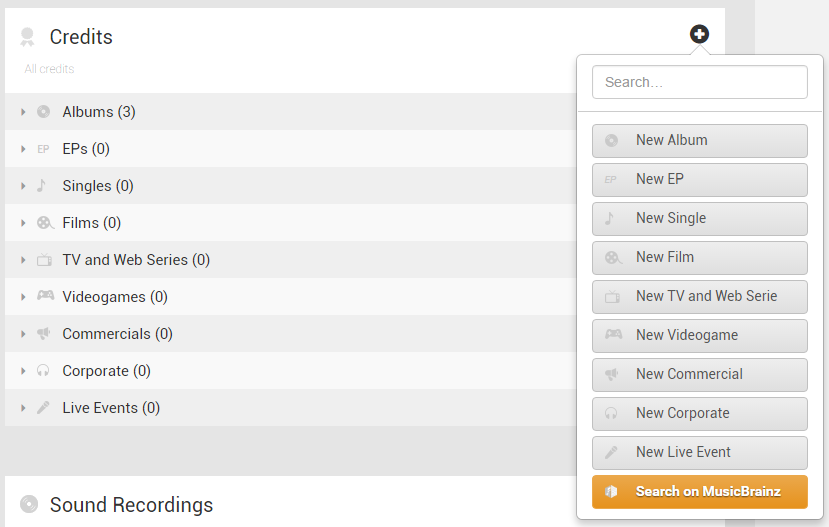
Step 3. Review the Import Credits from MusicBrainz pop-up
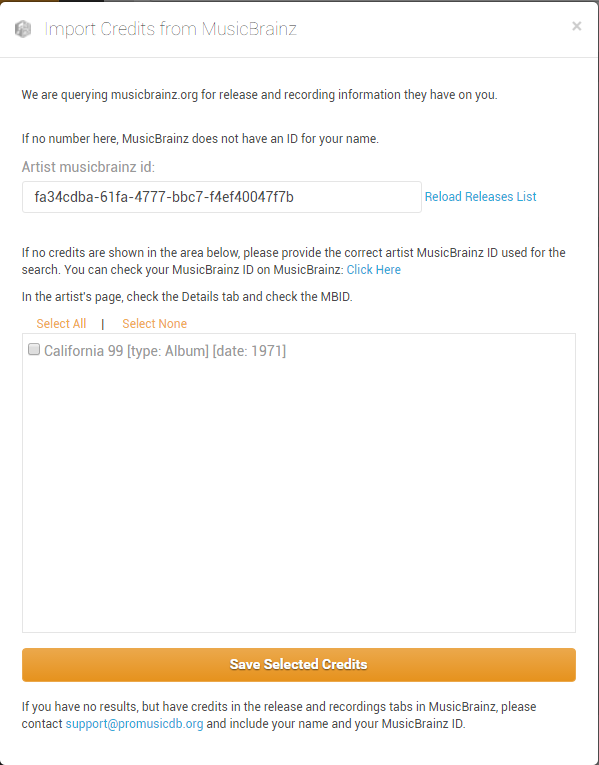
Step 4. Select credits from the search result
Step 5. Click Save Selected Credits
Page will be refreshed and selected credits will be shown in Credits section appropriately.